

Stream logs
how-to Steps to accomplish one task
On this page
In this article, you will learn how to ensure that your golden records have been successfully exported and how to identify issues when something goes wrong.
CluedIn offers three types of logs to assist in monitoring and troubleshooting your streams:
-
Golden record stream logs – view the streams that exported a specific golden record.
-
Stream logs – view golden records exported by a specific stream.
-
Export target health checks – view the health check status of the export target, updated every minute.
In addition, the Stream Log tab shows a delivery confirmation summary so you can confirm, at a glance, how many records a stream has attempted to deliver, how many were delivered successfully, and how many failed.
Golden record stream logs
Each golden record contains the Streams tab, where you can find the stream that exported the golden record and the date it was sent to the export target.

This page lists active and paused streams that exported the golden record. However, if the stream is stopped, it is not displayed on the Streams tab because all of its logs are cleared. You can select the stream to view its details.
Delivery confirmation
At the top of the Stream Log tab, the Delivery confirmation panel shows the stream’s own ID – a stable identifier you can copy and reference when raising a support request – alongside three counts for the selected time window:
-
Attempted – the total number of records the stream tried to deliver to its export target.
-
Successful – records confirmed delivered to the export target.
-
Failed – records that failed to deliver; see them with their error details in the stream log below, filtered by severity Error.

By default, the counts cover all time. Use the date filter next to the counts to narrow them to a specific window, for example to confirm how many records a stream delivered since this morning.
Stream logs
Each stream contains the Stream Log tab, where you’ll find all golden records that were exported by this stream. If the stream encounters an error while exporting golden records, it will be displayed on the page. This way, you can quickly identify and address any issues.
You can filter the stream logs by:
-
Severity – the level of importance or urgency of an event or issue. Learn about standard severity levels here.
-
Area – the place in the streaming pipeline that produces logs:
-
Stream ingestion log – logs coming from the stream.
-
Health check – logs coming from the export target assigned to the stream. When the health check status of the export target changes, for example, from Healthy to Unhealthy, a new log is added to the page.
-
Export target – other messages that the export target itself would like to log in the stream.
-
-
Entity ID – search for the logs of a specific golden record by its entity ID, to confirm whether and how that record was delivered.
-
Date range – narrow the logs to a specific time window.
This page displays logs only when the stream is active or paused. If you stop the stream, the logs are cleared.
Export target health checks
Each export target contains the Health Checks tab, where you can find the health check status of the export target.
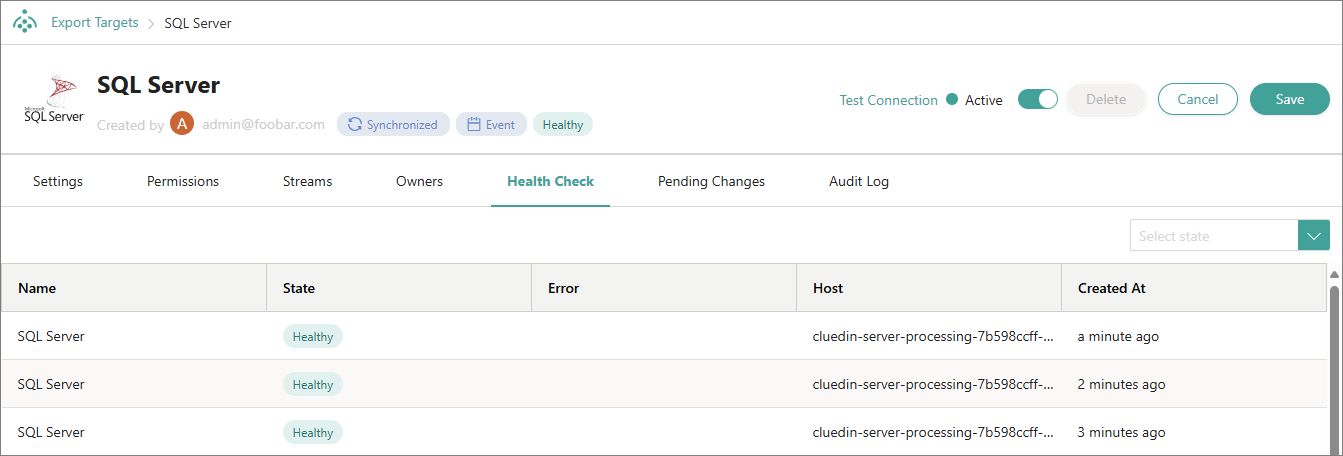
CluedIn runs health checks for the export target every 60 seconds. If the export target encounters any issues, its health status will be marked as Unhealthy. If the export target becomes Unhealthy, the stream associated with that export target is stopped and the corresponding log is added to the Stream Log page as well.